Summary in 3 points:
- Most store numbers get banned because of unofficial sending tools and messaging numbers that never opted in.
- Meta’s official channel + customer consent + gradual sending reduce the risk a lot.
- Check your number’s quality rating after every campaign, and make it easy for customers to stop offers.
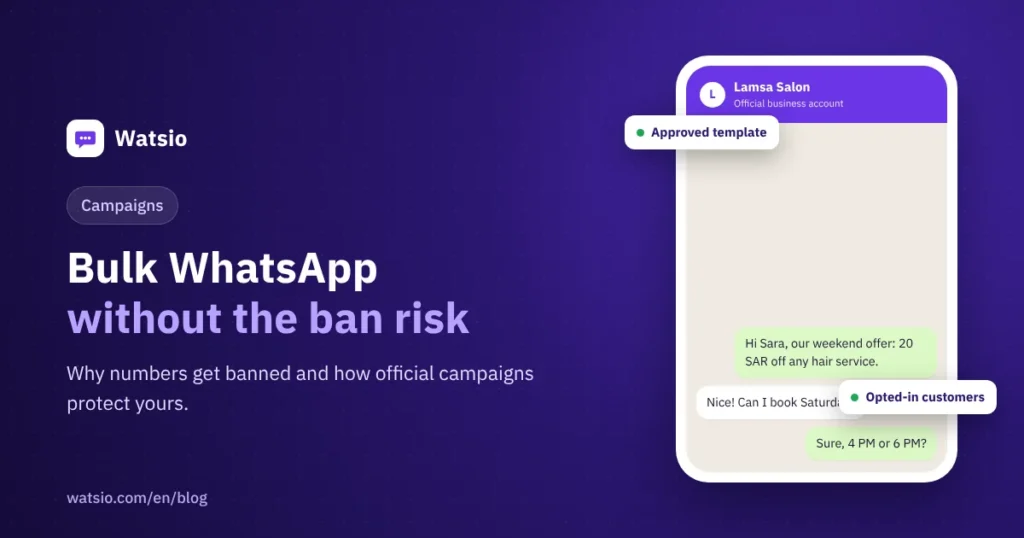
“Every time I send a broadcast, I pray the number doesn’t get banned.” We hear this from most store owners before they start with official WhatsApp. The reason is simple: most bans don’t come from the content itself, but from how it’s sent. In this guide we explain how to send WhatsApp campaigns to thousands of customers safely.
Why do numbers get banned in the first place?
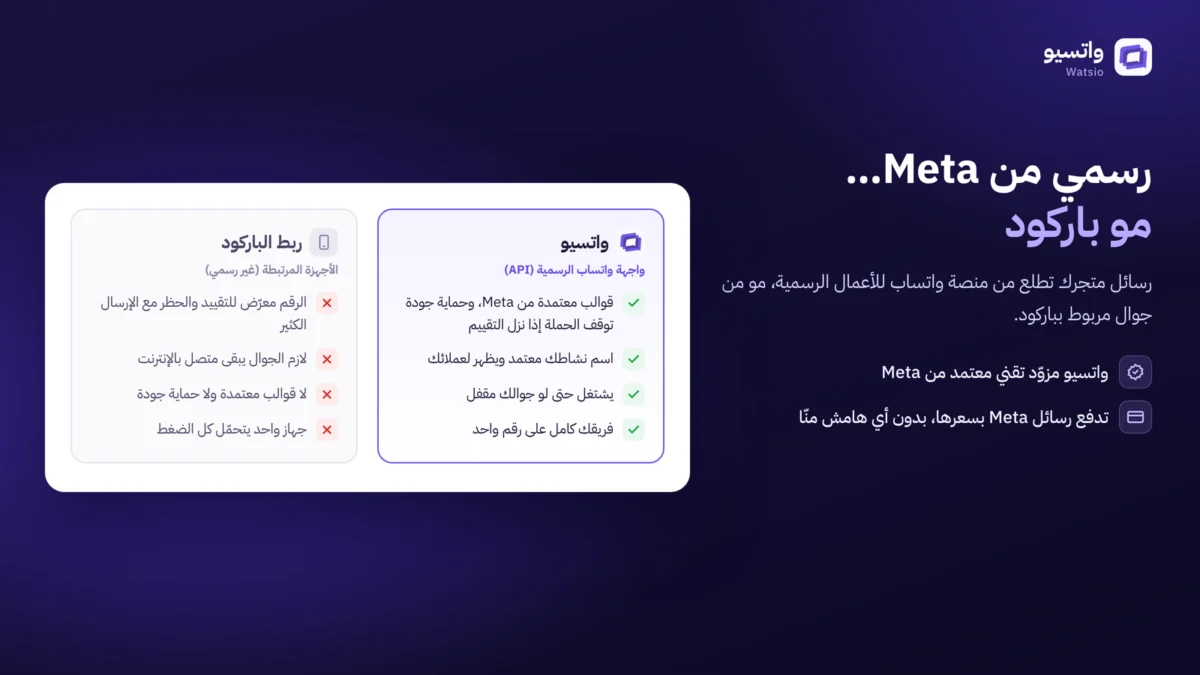
- Unofficial tools: programs that control WhatsApp Web or the app for bulk sending break WhatsApp’s terms, and Meta’s systems detect them quickly.
- Messaging numbers that didn’t opt in: when people get messages from a number they don’t know, they tap “Block” or “Report”, and that is the strongest negative signal on your number.
- Sudden high volume: thousands of messages from a new number within minutes.
- Annoying or misleading content: exaggerated offers, unknown short links, or the same message repeated every day.
Rule 1: Use the official channel
Sending through the WhatsApp Business Platform (API) via an official provider like Watsio is the official way Meta allows for bulk campaigns. Messages are sent as templates that Meta reviews in advance, and every account has clear messaging limits that rise gradually with good use.
Rule 2: Consent before sending
Only send to people who agreed to receive your messages (opt-in). There are many ways to collect consent: a checkbox on the checkout page, a welcome message at first contact, or a QR code in your branch. Save the source and date of consent. This protects you with Meta and under the Personal Data Protection Law.
Rule 3: Understand messaging limits
Meta sets how many customers you can start a conversation with in 24 hours. The limit is calculated across your whole business account (Business Portfolio), not per number:
- New accounts start at 250 customers per day.
- The limit rises automatically to 2,000, then 10,000, then 100,000, then unlimited, when you use at least half of your current limit within the last 7 days with high-quality messages.
- Automatic upgrades happen within hours of meeting the conditions.
In other words: don’t try to message your whole customer base on day one. Start with your most engaged customers and scale up gradually.
Rule 4: Watch your number’s quality
Meta gives every number a quality rating (high, medium, low) based on how customers interacted with your messages over recent days. Blocks and reports lower the rating, while reads and replies raise it. Many blocks can pause your templates or restrict your account, so check your quality after every campaign.
Rule 5: A message the customer actually benefits from
- Segment your customers: someone who bought a men’s perfume doesn’t need an abaya offer.
- Keep it short: a clear opening line, the offer, then one button.
- Personalize: use the customer’s name and the last product they bought.
- Pick the right time: avoid prayer times and late at night.
- Don’t overdo it: one or two marketing messages a week is enough for most stores.
- Make opting out easy: a “Stop offers” button reduces blocks more than you’d expect.
Checklist before every campaign
- The list contains only customers who opted in.
- The template is approved and correctly categorized (read our WhatsApp templates guide).
- The volume is within your current messaging limit.
- The link opens a fast page on mobile.
- A person or an auto-reply is ready to handle replies after sending.
How does Watsio help?
Watsio sends your campaigns through the official channel, segments your customers, schedules sending, tracks delivery, reads and replies, and routes replies straight to your team or the AI assistant. Try Watsio free or book a call and we’ll show you how to launch your first campaign safely.
Related articles: Sending WhatsApp bulk messages the official way and WhatsApp API pricing in Saudi Arabia. You can also check Watsio plan prices and try it free for 14 days, no card needed.
Frequently asked questions
Why was my store’s WhatsApp number banned?
The most common reasons: using unofficial bulk-sending programs, messaging numbers that didn’t opt in, customer reports and blocks, and suddenly sending a large volume from a new number.
Does the WhatsApp API guarantee my number won’t be banned?
Nobody can guarantee that. The official channel reduces the risk a lot, but Meta can restrict any number that breaks its policies or gets many reports.
How do I check my number’s quality?
Meta gives every number a quality rating (high, medium, low) that appears in WhatsApp Manager and on official platforms. Check it after every campaign.
Read next
- “Your account is restricted right now”: why and how to fix it
- WhatsApp Pricing from October 2026: Service Messages After 1,000
- WhatsApp Channels for business vs lists, groups and API messages
Sources
Last updated: November 2026 · Watsio team.